 admin
admin
How to take a screenshot on a MacBook: 6 easy ways
We'll tell you about six ways to take a screenshot from a MacBook screen: using a keyboard shortcut, a built-in utility, and third-party applications.
Apple computers may surprise newbies by not having the PrintScreen button found on Windows PCs. However, you can, of course, take screenshots on them.
As a rule, all actions are done much easier on Apple's OS. But in the case of such an operation as taking screenshots, for some reason everything is much more complicated in macOS. However, in place of the missing separate button for screenshots, macOS provides several options to solve the problem.
You can use multiple keyboard shortcuts that will give different effects; launch a built-in utility that will give you more freedom in creating images and recording videos, and also free up your memory from key combinations. Or use a completely radical method: use a third-party, free application.
How to take a screenshot using a keyboard shortcut
There are two keyboard shortcuts that perform different tasks.
Few people know, but if you press Shift + Command + 4 + Space, then instead of the cursor you will see a camera icon. By pointing it at an open program window, you can take a picture of a specific window. By pointing the icon to the toolbar - a screenshot of the toolbar and so on. This feature will be useful when your desktop is cluttered with open windows that make it difficult to take a neat screenshot.
How to take a screenshot using the built-in utility from Apple
It is called “Screenshot” and allows you not only to take screenshots, but also to video capture the entire display or a selected area.
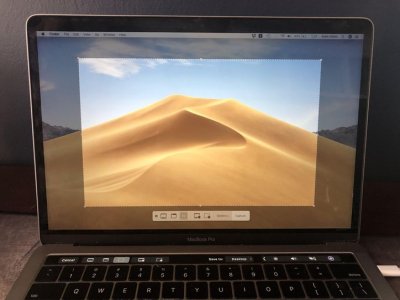
To find the utility, open the Dock and search for “Screenshot.” After launching the application, you will see a panel with controls. On it you can select an object to take a screenshot, as is the case with a keyboard shortcut, set a timer, where to save screenshots and videos on your computer, and much more.
Taking screenshots with third-party applications
In the application store you can find many programs for taking screenshots and processing images. There are both paid and free options. There are a lot of applications, but we have selected two of the best and completely free ones.
For those who don't like to spend a lot of time figuring things out, Skitch is a good choice - the software is available in the App Store. It allows you to not only take screenshots but also edit them. The editing tools are similar to Apple's built-in utilities, so working with the program will be familiar.
And for those who like to edit images and arrange tag clouds with pixel accuracy, the free monster Moonsnap is perfect. This is a real combine, not yet as bulky and omnipotent as the famous Adobe Photoshop, but already much stronger than Apple’s built-in tools.
The application does not have intrusive advertising, but it does have the ability to customize your own hotkeys, a convenient editor, a magnifying glass with 8x magnification, a free cloud for storing images, and the ability to connect your own FTP/SFTP, Amazon S3 or WebDAV. The software can also record video from the screen and webcam.
If you are the proud owner of an iPhone, you may not be familiar with the feeling of anxiety about your device being hacked by hackers. However, we have prepared some tips to help you understand if your iPhone is hacked.
Creating a screenshot of the entire screen
To create an apple screenshot of the entire screen on a MacBook, you need to simultaneously hold down the following key combination: Shift, Command and 3.
A small window will appear in one of the corners of the desktop. Click on the pop-up tab area and mark the required screenshot data. Then save the screenshot.
Snapshot of a screen area
In order to take a screenshot on a MacBook Air of a screen area, hold down the buttons: Shift, Command and 4.
After clicking, a cursor will appear with which you need to select a part of the screen to take a screenshot. To move the area, press Spacebar. To take a screenshot, you need to release the mouse button. Once created, a window will pop up to edit the image. Select the necessary parameters and save the screenshot.
Creating a screenshot of an apple tab or menu
To recreate a screenshot of a menu or window, first open the tab whose snapshot will be created. Then hold down the combination Shift, Command, 4 and Spacebar.
The icon will look like a camera. Press the mouse button to take a screenshot. Edit in the window and save.
Where is a screenshot saved on a MacBook?
All screenshots on a MacBook automatically appear on the laptop desktop. However, on updated MacBooks, if desired, you can change the location where the pictures are saved in the program settings for screenshots.
To launch this application on a laptop, simply simultaneously press the combination: Shift, Command and 5
Apple has created programs that prohibit taking screenshots.
To move a screenshot to another Apple device, you can do this using the universal clipboard.
Cancel taking a screenshot is easy. Simply press the Esc (Escape) button.
Method 1
Capture Full Screen
- Make sure you have Your screen displays exactly what you want to show in the screenshot. Make sure all relevant windows are visible.
- Click ⌘ Command{{HTML14 4}}++⇧ Shift3. This keyboard shortcut takes a screenshot of everything on your screen. If sound is turned on, your computer should make a short camera shutter sound.
- Find your screenshot on your desktop. This will be a png file named "Screenshot" and stamped with date and time. Earlier versions of OS X will save it as "Image #" - for example, if this is the 5th screenshot on your desktop, it will be labeled "Image 5".
- Use a screenshot. Once you have taken screenshots, they are ready to be used as needed. You can attach them to an email, upload them online, or even drag them directly into an application, such as a word processor.
Method 2
Take a photo of part of your screen
- Click ⌘ Command{{HTML19 6}}++⇧ Shift4. Your cursor will turn into a small crosshair.
- Click and drag to highlight the area you want to photograph. A gray rectangle should appear where you drag the cursor. If you need to adjust Windows at all, press Escape to return to the normal cursor without taking a photo.
- Release the mouse. You should hear a short camera shutter noise if your computer's audio is turned on. This signals that your screenshot has been taken.
- Find your screenshot on your desktop. This will be a png file named "Screenshot" and stamped with date and time.
- Earlier versions of OS X will save it as "Image #" - for example, if it's the 5th screenshot on your desktop, it will be labeled "Image 5".
- Use a screenshot. Once you have taken screenshots, they are ready to be used as needed. You can attach them to an email, upload them online, or even drag them directly into an application, such as a word processor.
Method 3
Capture an open window
- Click ⌘ Command++⇧ Shift4, then press Spacebar. The cursor will turn into a small camera.
- Hover over the window you want to make. The camera will highlight different windows in blue as it moves across them. You can use keyboard commands such as ⌘ Command+Tab ↹ to alternate windows while still in this mode.
- Click on the window. The image of the window you select will be saved to the desktop by default, just like other screenshot methods.
- Find your screenshot on your desktop. This will be a png file named "Screenshot" and stamped with date and time.
- Use a screenshot. Once you have taken screenshots, they are ready to be used as needed. You can attach them to an email, upload them to the Internet, or even drag them directly into an application, such as a word processor.
Method 4
Save the screenshot to the buffer exchange
- Click ⌘ Command+ Control+⇧ Shift+3. This method works exactly the same as the one above, except that the screenshot does not create the file right away. Instead, the image is saved to the clipboard, the same temporary storage area where your computer stores the text you copied.
- You can also take a screenshot using this method by using ⌘ Command+Control++ and dragging the aiming reticle to the appropriate part⇧ Shift4 of the screen, just like using the partial screenshot method.
- Use ⌘ Command+V to insert your image. The screenshot image can be pasted directly into any compatible application, such as a Word document, image editing program, and many email services.
- You can also use "Edit > "Insert" in the menu bar.
Method 5
Use a screenshot app (Mojave and later)
- Click ⌘ Command{{HTML41 9}}++⇧ Shift5. This opens the built-in Mac screenshot app. A small gray menu of screenshot tools will appear. This application can take screenshots of the entire screen, parts of the screen, and individual windows. You can also set a timer and enable the cursor. The app also allows you to record your screen.
-
- Capture the entire screen
- Capture a window
- Take a screenshot of part of the screen
- Record the whole screen
- Record part of screenSelect a tool. Select the tool you want to use to take a screenshot. Here are your options:
- Click "Options". Here you can set a timer, show the cursor on the screenshot, and specify where you want to save the screenshot.
- Click “Capture“. This will take a screenshot of the entire screen or the portion you select.
- To take a picture of a window, click the window on the screen using the Window tool.
Method 6
Use the Grab Utility (High Sierra and earlier)
- Go to Applications>Utilities>Capture. The Grab Utility Tool application will open. You will see menus displayed in the top left corner of the screen, but no windows will open.
- This tool has been replaced by a screenshot app in later versions of macOS.
- Click capture menu and choose from four different options.
- To take a screenshot of the entire screen, click Screen. A window will appear telling you where to click and informing you that the window will not appear in the photo.
- To take a screenshot of part of the screen, click "Select". A window will appear with instructions for hovering your mouse over the part of the screen you want to draw.
- To take a snapshot of a specific window, select Window. Then click on the window you want to photograph.
- When a new window opens, select Save. You can also select Save As to give it a different name and/or move it to a more appropriate location, but note that it can only be saved as a . tiff. Please note that the file is not saved automatically.