

Other articles
Useful materials on various topics related to the Internet, technology, programs and digital services. Here you can find instructions, reviews, recommendations and practical tips that are not included in the main sections.
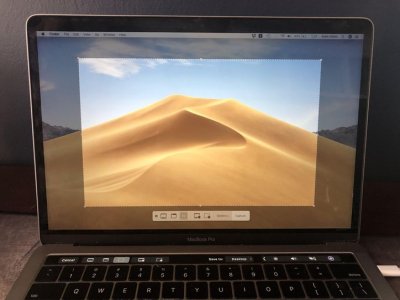
How to take a screenshot on a MacBook: 6 easy ways
We'll tell you about six ways to take a screenshot from a MacBook screen: using a keyboard shortcut, a built-in utility, and third-party applications.
Apple computers may surprise newbies by not having the PrintScreen button found on Windows PCs. However, you can, of course, take screenshots on them.
As a rule, all actions are done much easier on Apple's OS. But in the case of such an operation as taking screenshots, for some reason everything is much more complicated in macOS. However, in place of the missing separate button for screenshots, macOS provides several options to solve the problem.
You can use multiple keyboard shortcuts that will give different effects; launch a built-in utility that will give you more freedom in creating images and recording videos, and also free up your memory from key combinations. Or use a completely radical method: use a third-party, free application.
How to take a screenshot using a keyboard shortcut
There are two keyboard shortcuts that perform different tasks.
Few people know, but if you press Shift + Command + 4 + Space, then instead of the cursor you will see a camera icon. By pointing it at an open program window, you can take a picture of a specific window. By pointing the icon to the toolbar - a screenshot of the toolbar and so on. This feature will be useful when your desktop is cluttered with open windows that make it difficult to take a neat screenshot.
How to take a screenshot using the built-in utility from Apple
It is called “Screenshot” and allows you not only to take screenshots, but also to video capture the entire display or a selected area.
To find the utility, open the Dock and search for “Screenshot.” After launching the application, you will see a panel with controls. On it you can select an object to take a screenshot, as is the case with a keyboard shortcut, set a timer, where to save screenshots and videos on your computer, and much more.
Taking screenshots with third-party applications
In the application store you can find many programs for taking screenshots and processing images. There are both paid and free options. There are a lot of applications, but we have selected two of the best and completely free ones.
For those who don't like to spend a lot of time figuring things out, Skitch is a good choice - the software is available in the App Store. It allows you to not only take screenshots but also edit them. The editing tools are similar to Apple's built-in utilities, so working with the program will be familiar.
And for those who like to edit images and arrange tag clouds with pixel accuracy, the free monster Moonsnap is perfect. This is a real combine, not yet as bulky and omnipotent as the famous Adobe Photoshop, but already much stronger than Apple’s built-in tools.
The application does not have intrusive advertising, but it does have the ability to customize your own hotkeys, a convenient editor, a magnifying glass with 8x magnification, a free cloud for storing images, and the ability to connect your own FTP/SFTP, Amazon S3 or WebDAV. The software can also record video from the screen and webcam.
If you are the proud owner of an iPhone, you may not be familiar with the feeling of anxiety about your device being hacked by hackers. However, we have prepared some tips to help you understand if your iPhone is hacked.
Creating a screenshot of the entire screen
To create an apple screenshot of the entire screen on a MacBook, you need to simultaneously hold down the following key combination: Shift, Command and 3.
A small window will appear in one of the corners of the desktop. Click on the pop-up tab area and mark the required screenshot data. Then save the screenshot.
Snapshot of a screen area
In order to take a screenshot on a MacBook Air of a screen area, hold down the buttons: Shift, Command and 4.
After clicking, a cursor will appear with which you need to select a part of the screen to take a screenshot. To move the area, press Spacebar. To take a screenshot, you need to release the mouse button. Once created, a window will pop up to edit the image. Select the necessary parameters and save the screenshot.
Creating a screenshot of an apple tab or menu
To recreate a screenshot of a menu or window, first open the tab whose snapshot will be created. Then hold down the combination Shift, Command, 4 and Spacebar.
The icon will look like a camera. Press the mouse button to take a screenshot. Edit in the window and save.
Where is a screenshot saved on a MacBook?
All screenshots on a MacBook automatically appear on the laptop desktop. However, on updated MacBooks, if desired, you can change the location where the pictures are saved in the program settings for screenshots.
To launch this application on a laptop, simply simultaneously press the combination: Shift, Command and 5
Apple has created programs that prohibit taking screenshots.
To move a screenshot to another Apple device, you can do this using the universal clipboard.
Cancel taking a screenshot is easy. Simply press the Esc (Escape) button.
Method 1
Capture Full Screen
- Make sure you have Your screen displays exactly what you want to show in the screenshot. Make sure all relevant windows are visible.
- Click ⌘ Command{{HTML14 4}}++⇧ Shift3. This keyboard shortcut takes a screenshot of everything on your screen. If sound is turned on, your computer should make a short camera shutter sound.
- Find your screenshot on your desktop. This will be a png file named "Screenshot" and stamped with date and time. Earlier versions of OS X will save it as "Image #" - for example, if this is the 5th screenshot on your desktop, it will be labeled "Image 5".
- Use a screenshot. Once you have taken screenshots, they are ready to be used as needed. You can attach them to an email, upload them online, or even drag them directly into an application, such as a word processor.
Method 2
Take a photo of part of your screen
- Click ⌘ Command{{HTML19 6}}++⇧ Shift4. Your cursor will turn into a small crosshair.
- Click and drag to highlight the area you want to photograph. A gray rectangle should appear where you drag the cursor. If you need to adjust Windows at all, press Escape to return to the normal cursor without taking a photo.
- Release the mouse. You should hear a short camera shutter noise if your computer's audio is turned on. This signals that your screenshot has been taken.
- Find your screenshot on your desktop. This will be a png file named "Screenshot" and stamped with date and time.
- Earlier versions of OS X will save it as "Image #" - for example, if it's the 5th screenshot on your desktop, it will be labeled "Image 5".
- Use a screenshot. Once you have taken screenshots, they are ready to be used as needed. You can attach them to an email, upload them online, or even drag them directly into an application, such as a word processor.
Method 3
Capture an open window
- Click ⌘ Command++⇧ Shift4, then press Spacebar. The cursor will turn into a small camera.
- Hover over the window you want to make. The camera will highlight different windows in blue as it moves across them. You can use keyboard commands such as ⌘ Command+Tab ↹ to alternate windows while still in this mode.
- Click on the window. The image of the window you select will be saved to the desktop by default, just like other screenshot methods.
- Find your screenshot on your desktop. This will be a png file named "Screenshot" and stamped with date and time.
- Use a screenshot. Once you have taken screenshots, they are ready to be used as needed. You can attach them to an email, upload them to the Internet, or even drag them directly into an application, such as a word processor.
Method 4
Save the screenshot to the buffer exchange
- Click ⌘ Command+ Control+⇧ Shift+3. This method works exactly the same as the one above, except that the screenshot does not create the file right away. Instead, the image is saved to the clipboard, the same temporary storage area where your computer stores the text you copied.
- You can also take a screenshot using this method by using ⌘ Command+Control++ and dragging the aiming reticle to the appropriate part⇧ Shift4 of the screen, just like using the partial screenshot method.
- Use ⌘ Command+V to insert your image. The screenshot image can be pasted directly into any compatible application, such as a Word document, image editing program, and many email services.
- You can also use "Edit > "Insert" in the menu bar.
Method 5
Use a screenshot app (Mojave and later)
- Click ⌘ Command{{HTML41 9}}++⇧ Shift5. This opens the built-in Mac screenshot app. A small gray menu of screenshot tools will appear. This application can take screenshots of the entire screen, parts of the screen, and individual windows. You can also set a timer and enable the cursor. The app also allows you to record your screen.
-
- Capture the entire screen
- Capture a window
- Take a screenshot of part of the screen
- Record the whole screen
- Record part of screenSelect a tool. Select the tool you want to use to take a screenshot. Here are your options:
- Click "Options". Here you can set a timer, show the cursor on the screenshot, and specify where you want to save the screenshot.
- Click “Capture“. This will take a screenshot of the entire screen or the portion you select.
- To take a picture of a window, click the window on the screen using the Window tool.
Method 6
Use the Grab Utility (High Sierra and earlier)
- Go to Applications>Utilities>Capture. The Grab Utility Tool application will open. You will see menus displayed in the top left corner of the screen, but no windows will open.
- This tool has been replaced by a screenshot app in later versions of macOS.
- Click capture menu and choose from four different options.
- To take a screenshot of the entire screen, click Screen. A window will appear telling you where to click and informing you that the window will not appear in the photo.
- To take a screenshot of part of the screen, click "Select". A window will appear with instructions for hovering your mouse over the part of the screen you want to draw.
- To take a snapshot of a specific window, select Window. Then click on the window you want to photograph.
- When a new window opens, select Save. You can also select Save As to give it a different name and/or move it to a more appropriate location, but note that it can only be saved as a . tiff. Please note that the file is not saved automatically.

Which hosting is best for WordPress based on system requirements?
For WordPress, it is better to choose hosting with modern PHP, sufficient RAM and a fast SSD/NVMe drive. The best option for most sites would be hosting with PHP 8.2+, MySQL/MariaDB, HTTPS and the ability to use modern versions of the web server. For small projects, regular virtual hosting is suitable, and for online stores and high-load sites it is better to consider VPS.
The main requirements for hosting WordPress sites are:
PHP VERSION
This is a key requirement for WordPress to work; the performance of some plugins and some themes depends on PHP. On hosting you can choose any of the PHP versions: 5.2, 5.3, 5.4, 5.5, 5.6, 7.0.
MYSQL VERSION
TimeWeb has a MySQL version that supports WordPress, and also has a convenient database editor PHPMyAdmin, the control panel supports switching to the editor without entering a password.
DISC SPACE
Starting with the Year+ tariff, TimeWeb provides 10 GB of space for your website; if there is not enough space, you can always upgrade to a higher tariff and get additional resources without website downtime.
RAM LIMIT
All plans provide enough RAM to run WordPress, the specific amount depends on the plan
TRAFFIC LIMIT
On all TimeWeb tariffs, traffic for sites is not limited, you can place any documents and files you need on
hostingMOD_REWRITE
The .htaccess file is available for all accesses; some directives are processed by nginx. The nginx+apache combination allows your sites to work much faster!
PHP FOPEN
This feature is available on TimeWeb hosting. It allows you to update your plugins and WordPress version in one click. Your plugins will always be new, and your WordPress version will always be up to date!
WordPress Hosting
Hosting TimeWeb are ideal for your site + there is an automatic cms installation. Servers maintain uptime at 99.9% and it is constantly growing! In all respects, TimeWeb hosting is ideal for your WP site and more.
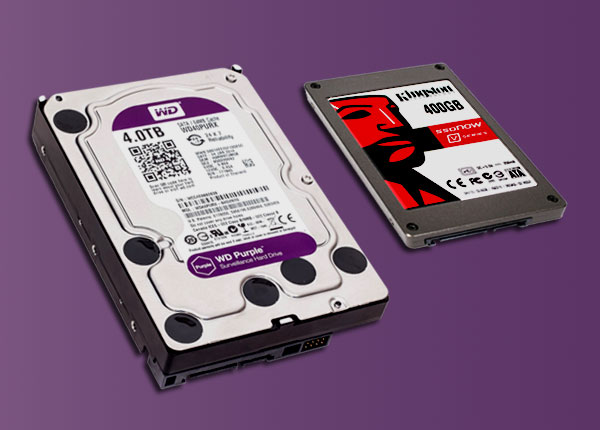
What is more reliable - SSD or HDD?
According to cloud storage company Backblaze, solid-state drives (SSDs) are more reliable than hard drives (HDDs), at least for certain use cases, but that may not actually make much of a difference when choosing a storage type, reports ZDNet.
Backblaze provides cloud backup services for laptops and desktops and offers its cloud storage to businesses.
This year the company decided to contribute to the debate about whether hard drives or solid-state drives are more reliable.
And I found out, in particular, that SSDs are more reliable than HDDs over five years of use. But this is not the only thing you should think about when buying.
The Backblaze cloud platform uses a combination of SSDs and HDDs as boot drives for storage servers. Since 2018, the company has replaced failed boot HDDs mainly with 2.5-inch SSDs (some M. 2 drives). Backblaze SSD/HDD drives boot the storage servers and also store log files and temporary files created by the storage server.
Today, Backblaze has over 2,500 SSDs (a mix of Crucial, Dell, Micron, Seagate and Western Digital) and stores over 2 EB of data. The company measures the reliability of SSDs and HDDs by tracking annual failure rate (AFR) to shed light on the "previously opaque world of hard drive failure rates" and apparently bolster discussion about the technology behind its service.
To account for the age difference between the older hard drives and the newer SSDs it compared with, the company last year published AFRs for SSDs and "life-controlled" HDDs.
It turned out that SSDs fail less often, but not significantly.
(The problem with the data was that the failure rate of hard drives increases sharply after five years, and there is no five-year data yet for solid-state drives. ) “The difference, of course, on its own is not enough to justify the additional cost of purchasing an SSD over an HDD,” the study authors concluded, noting that when purchasing either technology, it is better to consider factors such as cost, required speed, power consumption, and form factor.
Now, with five years of SSD data, the company has come to a different conclusion—albeit with some caution. The lifetime AFR for HDD and SSD in the fourth year was 1.83 and 1.05%, respectively, and in the fifth year the gap widened: 3.55% for HDD versus 0.92% for SDD.
The lifetime AFRs for HDDs in years six, seven and eight were 5.23, 6.26 and 6.93%, respectively. How SSDs will fare in these years remains to be seen.
“At this point, we can safely say that SSDs are more reliable than HDDs, at least when used as boot drives in our environment,” Backblaze said in a post.
The company adds: “It's safe to say that SSD failure rates will eventually start to rise.
It's also possible that they'll run into big problems at some point, perhaps when they start to reach the wear and tear limits of the media." However, this is just one of the factors that consumers must weigh when purchasing drives, while price remains a key factor, given that a 1TB SSD costs at least twice as much as an HDD of similar capacity.
Backblaze notes that actually using failure rate as a factor in decision making is questionable. After accounting for age and days of use, both types of drives were similar in this regard, and the difference in performance alone was not enough to justify the additional cost of purchasing an SSD compared to an HDD.
"At this point, you're better off making your decision based on other factors: cost, speed requirements, electricity, form factor requirements, etc.," the company recommends.

What are the alternatives to Google AdSense?
If you're looking for Google AdSense alternatives, you've come to the right place.
AdSense is a great way to monetize your site, but it's not the only option available.
Before we dive into what Google AdSense alternatives are, let's look at a brief history of the platform and how you can make money with it.
What is Google AdSense?
AdSense is an advertising platform from Google that helps bloggers, webmasters, and website owners place ads on their resources to generate income.
Since its launch in early 2003, AdSense has become the most popular advertising network, with millions of publishers signing up to monetize their blogs and websites.
There are two different types of advertising in Google Adsense:
- Display advertising typically consists of banners or videos.
- Text ads - a title and a short description.
In both cases, when the user clicks on the ad, they are redirected to the advertiser's site.
Google AdSense takes care of a lot of things. Website owners simply paste the ad code into their site and Google will automatically start serving ads targeted to your viewers based on geography, demographics, search history, etc.
Google AdSense has a minimum payout of $100 per ad impression.
It is not difficult for a site with large volumes of traffic to earn them, which cannot be said about small web resources.
There is a list of conditions that must be met to start working with Google AdSense. Your site must be created at least six months ago, have at least 20 posts and a decent amount of traffic.
This advertising network can reject website owners if they don't meet some minor criteria. At the same time, they do not give the opportunity to correct mistakes and try again.
In this case, it's worth looking at what options you can use instead of Google AdSense.
5 Best Alternatives to Google AdSense
We'll look at the top five AdSense alternatives to make money. Some are even better than AdSense, and some simply offer different monetization options.
1. Ezoic
If you are wondering what to choose instead of AdSense, Ezoic is a popular Google Adsense alternative that allows you to earn more income using multiple ad formats to increase your chances of earning money.
What Ezoic offers:
- full-screen graphic ad units,
- video ads,
- graphic advertising,
- text advertising, etc.
The advertising network also displays mobile device advertising that AdSense offers to a narrow range of its publishers.
Categories of sites that can join Ezoic:
- If you have less than 10,000 views per month, the Ezoic Basic category is suitable for you.
- If you have more than 10 thousand views per month, you fall into the Ezoic Plus category.
The biggest difference between the categories is that Ezoic offers a more publisher-friendly payout threshold of just $20. This means that you can withdraw profits as soon as they are credited.
Ezoic can be a great alternative to Google AdSense as it offers higher CPMs and ads that are relevant to the theme of your website, while still earning your income in small amounts.
2. RichAds
RichAds is another good AdSense alternative for your website. This advertising network provides advertisements in the format of push notifications or popunders.
Both formats mean you don't have to place banners on your site. Subscription to push notifications can be easily combined with banner advertising and other monetization methods. This is a good way to increase your income.
How does it work?
The owner adds a small piece of code to his site. Thanks to it, an unobtrusive pop-up window appears on the page, which asks the user for permission to send him notifications. The user can accept or reject this offer. If you agree, the advertising network will pay you either for each click on a push notification made by users from your push subscription database.
Users will receive push notifications themselves through the browser even when they leave your site.
The RichAds advertising network (https://richads.com/ru/) works as an intermediary between advertisers and website owners. The advertiser pays directly to the advertising network, which shares a percentage of the revenue with the site owner. The best part about using this platform is that you don't need any coding knowledge. Just one line of script is all it takes to add a subscription box to your website.
Don't want to clutter your site with banners, but want to earn extra income every month?
Then try monetizing with a push advertising subscription.
To get paid, you need to earn at least $10, which is one of the lowest in the industry. You can receive income twice a month.
RichAds has removed restrictions on the minimum number of site visits and canceled the mandatory site moderation procedure. Take the opportunity to join!
3. Media. net
Media stands out among Google Adsense analogues. net is a contextual advertising network similar to AdSense. It also offers website owners to earn income by showing targeted advertising.
Participation in the program is free, there are no minimum traffic requirements. In addition, publishers can use Media tools. net to customize the appearance of the ads they display on their sites.
Media. net is an advertising partner of Yahoo/Bing that allows site owners to get paid for every click on the advertisements they choose for their site.
To get started, simply register for an account with Media. net and add your site to the network. Once your site is approved, you can start showing ads on your pages.
You'll earn money every time a visitor clicks on one of these ads. The amount you earn will depend on many factors, including the country in which the ad is displayed, as well as the size of the ad unit.
Media. net offers advertisers three types of advertising:
- Advertising sponsored links (similar to Google Adwords)
- Links to content (advertising of this type is displayed on the side with information, it can be news, finance, etc. )
- Video ads (display before or after the video plays).
The minimum payout for this platform is $100.
4. InfoLinks
InfoLinks works differently than Google Adsense. Today it is the third largest advertising platform in the world, which means that your site will not be left without advertising, since a large number of advertisers work with them.
InfoLinks is a contextual advertising network, which means it only shows ads that are relevant to your site. Instead of displaying banner ads, it allows you to place text snippets and links with content related to the topic of your page.
When someone clicks on one of these links, they are taken to a page with more information about the product or service being advertised. If you've ever noticed links that display miniature pop-ups on hover, this is it.
This type of advertising is known as pay-per-click (CPC) advertising because the advertiser only pays when someone eventually clicks on the link.
The best thing about this ad network is that you don't have to have thousands of visitors to your site to join. All you have to do is add your site's URL so InfoLinks can see if it meets their requirements.
5. Amazon Affiliates
There are many ways to monetize a website other than directly advertising on it. For example, you can join an affiliate program and promote products from other companies.
Amazon is the most popular affiliate program. It is the most affordable and offers a wide range of products that you can promote using personal recommendations or other native methods.
After registration you will be able to access the affiliate panel. Here you can find all the information you need to get started. The next step is to add links to your site. You can do this by copying and pasting the HTML code or using a WordPress website plugin.
Once you've added links to your site, it's time to start promoting your products! When a visitor clicks on one of your affiliate links, they will be taken to Amazon's website. If they make a purchase, you will receive a commission on the sale.
The minimum payout is only $10.
Conclusion
While it's clear that Google AdSense dominates the advertising market, there are other ad networks worth considering. Some of them are even better than AdSense when it comes to requirements, cost per impressions/clicks, and minimum payouts.
We have collected the best Google AdSense alternatives for you. Keep in mind that this list only includes five platforms, and there are many more similar to Google AdSense.
Subscribing to any of these options will allow you to diversify your income and increase the number of ads appearing on your site, especially if you choose pushes and pops that don't take up space on the page. All this will help you monetize your content much more effectively.
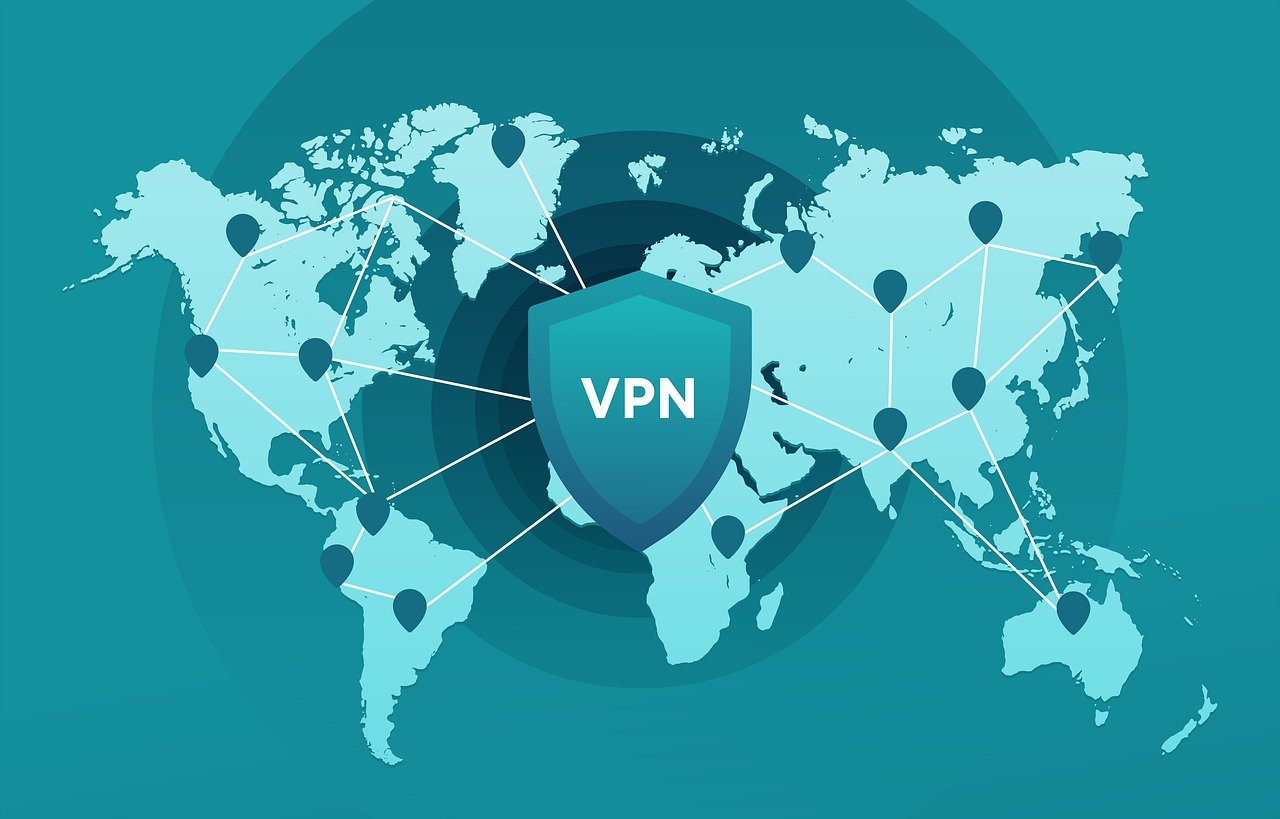
What is a VPN?
VPN is a technology that creates a secure connection between your device and the Internet. It encrypts data in transit and hides your real IP address, helping to increase your privacy and security when using the network.
VPN establishes a virtual direct connection between your device and the Internet, sending data through an encrypted tunnel. This connection promises you digital privacy protection.
When visiting Internet pages, your device and data are determined by the IP address assigned to you by your ISP. Thanks to this, they know about you what you are doing now online: provider, specialist. services and even scammers who can intercept information about you and use it. (passwords from sites, payment system details, etc.).
How to Get Anonymous
To counter online surveillance, you'll need a Virtual Private Network. When using it, your indicators will no longer be so easy to intercept; they will pass through the so-called tunnel. The IP address will be hidden, and the location will not be able to be tracked, making it possible to visit blocked sites, such as torrents.
It should be clearly understood that no VPN will give you a 100% guarantee of anonymity on the network.
In order to choose an anonymous VPN service, you must know:
1. Server locations
When choosing a server, pay attention to what area it is located in, because each state has its own laws, and they treat many things differently. I advise you to look for a country that is radically different from the one in which you live. It’s better in other states, but with good Internet infrastructure. You can also go to Germany, it is more loyal.
2. Saving full information in logs and storing the logs themselves
In order for you to install and use their project, many companies prove that they do not store logs, but this is a lie. Logs are saved on any service. Choose a site where logs are saved for no more than a day and only save connection information.
3. Do they cooperate with special services
You may be convinced that the services do not work for special services. services, and they are so far away that the feds cannot reach them. I can assure you that in the event of a warrant or a raid by the feds, they will give out all the information about the person they are interested in. Few can resist pressure and threats!
4. How to pay
When paying via Qiwi, Paypal and WebMoney, you are already burned! A suitable wallet through which you can pay is Bitcoin.
5. Connection type
All types of connections, without exception, are good for you to ensure anonymity.

What is ChatGPT?
ChatGPT is a large-scale language model trained on the GPT-3.5 architecture built by OpenAI. It is one of the most powerful and advanced language models available today and has many practical applications.
ChatGPT is an artificial intelligence system that can process natural language and generate text in response to given questions or commands. This model uses deep learning and neural networks to learn from large amounts of text data and create new text based on it.
ChatGPT was introduced in 2020 as a response to the increasing demand for various artificial intelligence systems capable of processing and generating texts. He has a huge knowledge base and can answer a wide range of questions, ranging from scientific and technical questions to arts and entertainment related questions.
ChatGPT can be used for a variety of purposes, including automatically translating texts, composing answers to customer questions, creating articles and text for web pages, and creating bots for chats and other communication systems.
To use this chat, just follow the link or use the telegram bot
One of the advantages of ChatGPT is its ability to learn from large amounts of data, which allows it to produce high-quality text that is difficult to distinguish from human-written text. Moreover, ChatGPT is constantly updated and improved, allowing it to cope with more complex and varied tasks.
Despite all its advantages, ChatGPT also has some limitations and risks. For example, when using this model, it is necessary to take into account the possibility of generating texts that may be erroneous or even misleading. Additionally, ChatGPT has the potential for abuse, such as creating fake news or manipulating information.

How to create your own online store?
Running an online store requires well-thought-out strategies and practices. Here are some key steps to creating and effectively running your online store:
1. Selecting a Niche and Products:
- Define the niche you want to cover. Research competitors and the market.
- Choose products that will be of interest to your target audience.
2. Creating a Quality Website:
- Develop a professional and easy-to-use website.
- Don't know how? Order from us!
- Ensure easy navigation and fast page loading.
- Add product information, descriptions, images and prices.
3. Search Engine Optimization (SEO):
- Optimize your site for search engines (SEO) to increase its visibility in search results.
- Use keywords, unique titles and meta tags.
4. Integrate secure payment methods:
- Provide a variety of payment methods to make the purchasing process convenient for customers.
- Ensure payment security with SSL certificates and data encryption.
5. Inventory and Logistics Management:
- Manage inventory effectively to avoid stockouts or overstocks.
- Select reliable suppliers and optimize delivery logistics.
6. Create quality content:
- Include high-resolution photos and informative product descriptions.
- Develop engaging blog content that your customers can benefit from.
7. Pricing Strategy:
- Define your pricing strategy, taking into account competitors and production costs.
- Provide discounts and promotions to attract customers.
8. Customer Service Management:
- Provide quality customer service by answering questions and resolving problems.
- Take customer feedback seriously and use it to improve your store.
9. Marketing and Promotion:
- Use marketing channels such as social media, contextual advertising and email newsletters.
- Create attractive promotions and discounts to attract customers.
10. Measuring and Analyzing Results:
- Use analytics to track your store's performance.
- Analyze data to find out what's working and adjust your strategies.
11. Legal Compliance:
- Make sure your online store complies with data protection, tax, and other laws.
12. Expansion and Growth:
- Continuously strive to increase product offerings, improve processes, and expand our customer base.
Running an online store is a long-term process that requires effort and a strategic approach. Constantly updating and adapting to changing market demands will help you manage your online store successfully.

Cryptocurrency: The Digital Future of Finance
Cryptocurrency is a topic that is capturing the attention of economists and ordinary people alike today, and is considered one of the most revolutionary innovations in the financial industry. In this report, we will look at what cryptocurrency is, how it works, and the potential implications it has for the global economy.
What is cryptocurrency?
Cryptocurrency is a form of digital or virtual currency that uses cryptography to provide secure transactions and control the creation of new units. It differs from traditional fiat currencies such as the dollar or euro in that it exists only in electronic form and does not have a physical "coin" or "banknote".
How does cryptocurrency work?
The main technological basis of cryptocurrency is the blockchain - a decentralized ledger that records all transactions and makes them available for public viewing. The main aspects of how cryptocurrency works include:
-
Decentralization: Cryptocurrency is not controlled by a central authority such as a government or central bank. Instead, it operates on blockchain technology and decentralized networks.
-
Encryption: Cryptocurrency transactions are cryptographically protected, making them secure and anonymous.
-
Mining: The creation of new units of cryptocurrency, such as Bitcoin, occurs through the mining process, where computers solve complex mathematical problems.
-
Public access: All cryptocurrency transactions are recorded on a public blockchain that can be verified by anyone.
Popular Cryptocurrencies
There are many different cryptocurrencies available today, but some of the most famous and widely used include:
-
Bitcoin: Bitcoin was the first cryptocurrency created in 2009. It remains the most popular and capitalized cryptocurrency in the world.
-
Ethereum: Ethereum provides a platform for creating smart contracts and decentralized applications.
-
Ripple: Ripple is focused on facilitating international payments and financial transactions.
-
Litecoin: Litecoin was created as an alternative to Bitcoin, with faster transaction times.
Implications of Cryptocurrencies for the Global Economy
Cryptocurrencies have the potential to change the global economy and financial system. Some of the potential impacts include:
-
Financial inclusion: Cryptocurrencies can provide access to financial services to those previously excluded from the banking system.
-
Improved international transactions: Cryptocurrencies can reduce the cost and speed up international transfers.
-
Innovation in Finance: Blockchain technology can lead to the development of new financial products and services.
-
Challenges for Regulators: The rise of cryptocurrencies also poses challenges for government regulators, including in the areas of security and taxation.

Creation of websites and online stores: The path to digital success
Creating a website and online store is a key step in business development in the era of digital transformation. In today's world where most people spend a lot of time online, having a strong online presence is an essential part of being a successful entrepreneur.
Website creation: Your virtual reflection
The website is the virtual face of your business. It provides customers with information about you, your company, and your products or services. When it comes to creating a website, it is important to consider a few key aspects:
-
Design and user experience: Your website should be user-friendly, with an attractive design and easy navigation.
-
Mobile adaptation: Taking into account the growing number of mobile device users, the site must be adapted for smartphones and tablets.
-
Search Engine Optimization (SEO): In order for your site to be visible in search results, it must be optimized using keywords and meta tags.
-
Fast Loading: A website should load quickly to avoid losing visitors.
Creating an online store: Open your virtual doors for business
Order a ready-made online store or multi-site website from us. ORDER
An online store is a powerful means of selling goods and services online. If you decide to create an online store, consider the following important aspects:
-
Shop platform: Choose a suitable platform for creating your store, such as Shopify, WooCommerce (for WordPress) or Magento.
-
Product Catalog: Create an informative product catalog with detailed descriptions and high-quality images.
-
Payment and delivery: Integrate convenient payment methods and set up an efficient delivery system.
-
Security: Secure payments and customer data with SSL certificates.
-
Inventory Management: Manage inventory effectively to avoid stockouts.
Creating an online store allows you to expand your audience and offer your customers a convenient shopping experience. Be the first among competitors! Order a website now
Conclusion
Creating websites and online stores is not just about creating virtual platforms, it is about creating an opportunity for your business to achieve greater success in the online world. Investing time and resources in properly creating and managing your online presence can greatly increase your chances of thriving and growing in the digital age.